# 运行此脚本即可自动配置每天凌晨2点重启服务器服务
INSTALL_DIR=“/opt/$SCRIPT_NAME”
RESTART_SCRIPT=“$INSTALL_DIR/restart_server.sh”
LOG_FILE=“/var/log/bt_daily_restart.log”
echo -e “${BLUE}================================================${NC}”
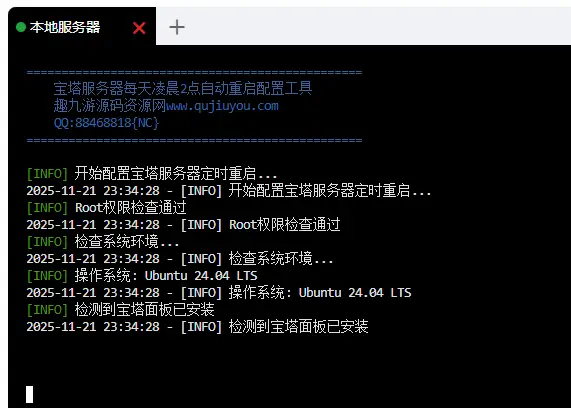
echo -e “${BLUE} 宝塔服务器每天凌晨2点自动重启配置工具${NC}”
echo -e “${BLUE} 趣九游源码资源网www.qujiuyou.com${NC}”
echo -e “${BLUE} QQ:88468818{NC}”
echo -e “${BLUE}================================================${NC}”
echo “$(date ‘+%Y-%m-%d %H:%M:%S’) – $1” | tee -a “$LOG_FILE”
echo -e “${GREEN}[INFO]${NC} $1”
echo -e “${YELLOW}[WARNING]${NC} $1”
echo -e “${RED}[ERROR]${NC} $1”
if [ “$EUID” -ne 0 ]; then
print_error “请使用root权限运行此脚本”
if [ -f /etc/os-release ]; then
print_info “操作系统: $PRETTY_NAME”
if [ -f “/etc/init.d/bt” ]; then
bt_version=$(bt info | grep “面板版本” | awk ‘{print $2}’ 2>/dev/null)
if [ ! -z “$bt_version” ]; then
print_info “宝塔面板版本: $bt_version”
print_error “未检测到宝塔面板,请先安装宝塔面板”
if systemctl is-active –quiet cron 2>/dev/null || systemctl is-active –quiet crond 2>/dev/null; then
print_warning “定时任务服务未运行,将自动启动”
systemctl start cron 2>/dev/null || systemctl start crond 2>/dev/null
systemctl enable cron 2>/dev/null || systemctl enable crond 2>/dev/null
create_restart_script() {
cat > “$RESTART_SCRIPT” << ‘EOF’
# 宝塔服务器重启脚本 – 自动执行时间: $(date)
LOG_FILE=“/var/log/bt_reboot.log”
echo “$(date ‘+%Y-%m-%d %H:%M:%S’) – $1” | tee -a “$LOG_FILE”
echo -e “33[0;32m[INFO]33[0m $1”
echo -e “33[0;31m[ERROR]33[0m $1”
if systemctl is-active –quiet nginx 2>/dev/null; then
if systemctl is-active –quiet httpd 2>/dev/null; then
if systemctl is-active –quiet mysqld 2>/dev/null || systemctl is-active –quiet mysql 2>/dev/null; then
systemctl stop mysqld 2>/dev/null || systemctl stop mysql 2>/dev/null
for php_version in 56 70 71 72 73 74 80 81 82; do
if systemctl is-active –quiet php-fpm-${php_version} 2>/dev/null; then
systemctl stop php-fpm-${php_version}
print_info “PHP-FPM ${php_version}已停止”
if systemctl is-active –quiet redis 2>/dev/null || systemctl is-active –quiet redis-server 2>/dev/null; then
systemctl stop redis 2>/dev/null || systemctl stop redis-server 2>/dev/null
/etc/init.d/bt stop 2>/dev/null
/etc/init.d/bt start 2>/dev/null
systemctl start mysqld 2>/dev/null || systemctl start mysql 2>/dev/null
if systemctl list-unit-files | grep -q “redis.service|redis-server.service”; then
systemctl start redis 2>/dev/null || systemctl start redis-server 2>/dev/null
for php_version in 56 70 71 72 73 74 80 81 82; do
if systemctl list-unit-files | grep -q “php-fpm-${php_version}.service”; then
systemctl start php-fpm-${php_version}
print_info “PHP-FPM ${php_version}已启动”
if systemctl list-unit-files | grep -q “nginx.service”; then
if systemctl list-unit-files | grep -q “httpd.service”; then
print_info “===== 开始服务器重启 =====”
find /tmp -type f -atime +7 -delete 2>/dev/null
print_info “===== 服务器重启完成 =====”
chmod +x “$RESTART_SCRIPT”
print_info “重启脚本创建完成: $RESTART_SCRIPT”
print_info “设置定时任务 – 每天凌晨2点重启…”
crontab -l 2>/dev/null | grep -v “$RESTART_SCRIPT” | crontab –
(crontab -l 2>/dev/null; echo “$CRON_TIME $RESTART_SCRIPT >> /var/log/bt_reboot.log 2>&1”) | crontab –
print_info “执行时间: 每天凌晨 02:00”
if [ -f “$RESTART_SCRIPT” ] && [ -x “$RESTART_SCRIPT” ]; then
if crontab -l 2>/dev/null | grep -q “$RESTART_SCRIPT”; then
echo -e “${GREEN}🎉 配置完成!${NC}”
echo -e “${BLUE}配置信息:${NC}”
echo “⏰ 重启时间: 每天凌晨 02:00”
echo “📜 脚本路径: $RESTART_SCRIPT”
echo “📝 重启日志: /var/log/bt_reboot.log”
echo -e “${BLUE}常用命令:${NC}”
echo “查看定时任务: crontab -l”
echo “查看重启日志: tail -f /var/log/bt_reboot.log”
echo “手动执行重启: $RESTART_SCRIPT”
echo “删除定时任务: crontab -l | grep -v ‘$RESTART_SCRIPT’ | crontab -“
echo -e “${BLUE}注意事项:${NC}”
echo “• 建议在访问量较低的时间段(凌晨2点)重启”
echo -e “${YELLOW}如需修改重启时间,请编辑crontab任务${NC}”
print_info “开始配置宝塔服务器定时重启…”
print_info “配置完成!服务器将在每天凌晨2点自动重启。”
 zwhd2013